what are you looking for?
Welcome to Vavocom
Email : service@vavocom.com


A laptop manufacturer should not be judged only by a low unit price, a polished product photo, or one sample that works during a video call. For B2B buyers, the real question is whether the factory can turn the RFQ, sample, BOM, certification files, packaging artwork, inspection report, shipping labels, and warranty terms into one stable bulk order standard. Many sourcing problems start when the buyer approves a sample but never confirms what the laptop factory must repeat in mass production.This becomes especially important when sourcing from a laptop manufacturer in China. Several supplier Excel quotations may show similar CPU, RAM, SSD, and screen size, but the real project risk often sits in less visible details: panel grade, battery documents, keyboard language, BIOS setup, carton strength, component substitution rules, spare parts, and RMA responsibility.Laptop Manufacturer, Laptop Supplier, and Laptop Factory: Focus on Control, Not the NameThe words laptop manufacturer, laptop supplier, and laptop factory often appear together in B2B sourcing emails. Titles matter, but they do not answer the buyer’s most important question: who controls the project standard after the sample is approved?Manufacturers usually stay closer to production, assembly, component sourcing, testing, and project records. Suppliers may handle sales, export, sourcing, or coordination across different production partners. Physical factories may assemble the units, but buyers still need to know who controls the BOM, who approves component changes, who manages inspection, and who answers when after-sales tickets appear.Factory status alone does not remove risk. When a screen panel changes, an adapter label fails to match the certification file, the keyboard language is wrong, or a batch fails inspection, the buyer needs a clear responsible party. The stronger procurement question is not “Are you a factory?” It is “How will you prove that the bulk order follows the approved sample?”For buyers comparing laptop suppliers, the most useful partner is not always the one with the longest product list. Before the purchase order is issued, a stronger sign is whether the supplier can explain the selected platform, component availability, customization limits, inspection process, packaging plan, and after-sales responsibility.GreatAsia’s laptop computers category shows why platform-based discussion matters for OEM/ODM projects. Branding, configuration, labels, and packaging can be discussed, but available options still depend on the approved model and order scope.Why Similar Laptop Manufacturer Quotes Can Carry Different RisksThree laptop factory quotes may show the same processor family, 16GB RAM, 512GB SSD, and 15.6-inch display. On the surface, the products look comparable. In practice, the quotations may describe very different levels of product quality, documentation, packaging, and after-sales responsibility.One quote may include a better display panel, stable motherboard platform, tested SSD grade, stronger battery cells, localized keyboard, Windows image preparation, retail packaging, barcode labels, and a clearer warranty process. A lower quote may include only a basic unit with neutral packaging and limited documentation. Both suppliers may say “same specification,” but the buyer is not really comparing the same project.Low price is not automatically wrong. For education tenders, entry-level reseller channels, and wholesale orders, strict cost control may be necessary. Trouble begins when the quotation does not define its scope, because missing lines for packaging, adapter, certification, OS setup, inspection, or spare parts can become price increases after sample approval.This table is a practical starting point, not a fixed answer. Factory evaluation depends on the selected platform, target market, order quantity, and deployment plan.Evaluation AreaWhat Buyers Usually See FirstWhat Needs Deeper ConfirmationUnit priceCPU, RAM, SSD, screen sizePanel grade, platform, battery, adapter, packaging, warranty scopeFactory capabilityWorkshop photos or product catalogBOM control, incoming inspection, production records, sample approval processSample qualityOne working sampleWhether the same configuration, accessories, packaging, and software will be used in bulk productionCertificationCE/FCC file nameScope by model, adapter, wireless module, label, brand arrangement, and target marketPackagingColor box artworkCarton strength, barcode, serial number label, manual, warranty card, and pallet planAfter-sales“One year warranty”DOA rules, spare parts, RMA process, evidence requirements, and freight responsibilityBuyers reviewing laptop wholesale pricing should treat each quotation as a scope document, not just a price sheet. When the scope is unclear, the order may face later price changes, inspection failure, customs delay, channel packaging disputes, or unclear warranty cost.Factory Capability Is Proven by Process, Not by PhotosFactory photos can help a buyer understand scale, but they do not prove that a laptop manufacturer can manage a specific bulk order. Workshop images, product catalogs, and sample rooms may show activity. Process records show control.Real factory capability appears in incoming inspection, BOM control, sample approval records, production tracking, final QC, packaging inspection, and RMA follow-up. ISO 9001 can be a useful quality management reference because ISO describes it as a standard for quality management system requirements. Because the standard does not prescribe exactly how an organization must operate, buyers should not treat a certificate as a replacement for project-level verification.Project-level verification should show how the supplier records approved panels, RAM, SSDs, batteries, adapters, wireless modules, keyboards, and packaging materials. When an approved part becomes unavailable, the laptop manufacturer should follow a substitution approval process. Quiet substitutions may pass basic function testing but still cause software instability, inconsistent user experience, or reseller complaints.Inspection deserves the same attention. Because ISO 28590 introduces acceptance sampling by attributes and summarizes the ISO 2859 sampling systems, it supports the idea that inspection should follow an agreed sampling plan instead of casual checking. For laptop orders, buyers should confirm sampling level, critical defects, major defects, minor defects, test items, cosmetic standards, accessory checks, packaging inspection, and report format before production starts.A reliable factory discussion should move from “Can you produce this model?” to “How will you prove that every batch follows the approved standard?”Sample Approval Should Confirm the Bulk Production StandardSample approval is one of the most dangerous moments in a laptop project because it can feel like the decision is already finished. A buyer may check the appearance, open a few applications, join a video meeting, confirm the logo, and reply with approval. That confirms one unit, not mass production.Before bulk order confirmation, the sample approval record should lock the BOM, display panel, RAM, SSD, battery, adapter, keyboard layout, Wi-Fi/Bluetooth module, camera, microphone, ports, BIOS settings, OS image, driver package, packaging file, label file, manual, warranty card, accessory list, and carton standard. These details should match the quotation and the future inspection standard.Small differences can create large after-sales pressure. Replacing the Wi-Fi module may require a different driver. Changing the display panel may reduce brightness or viewing angle. Substituting the SSD may cause performance complaints during recovery or large file transfers. Switching the adapter may trigger labeling or certification questions. Weak packaging that survives one express sample shipment may fail during pallet movement, courier sorting, or distributor warehouse handling.Photos help, but photos are not enough. Written sample approval records give production, QC, purchasing, logistics, and after-sales teams the same reference. For a custom laptop project, the buyer should move from “sample looks good” to “sample standard is locked.”
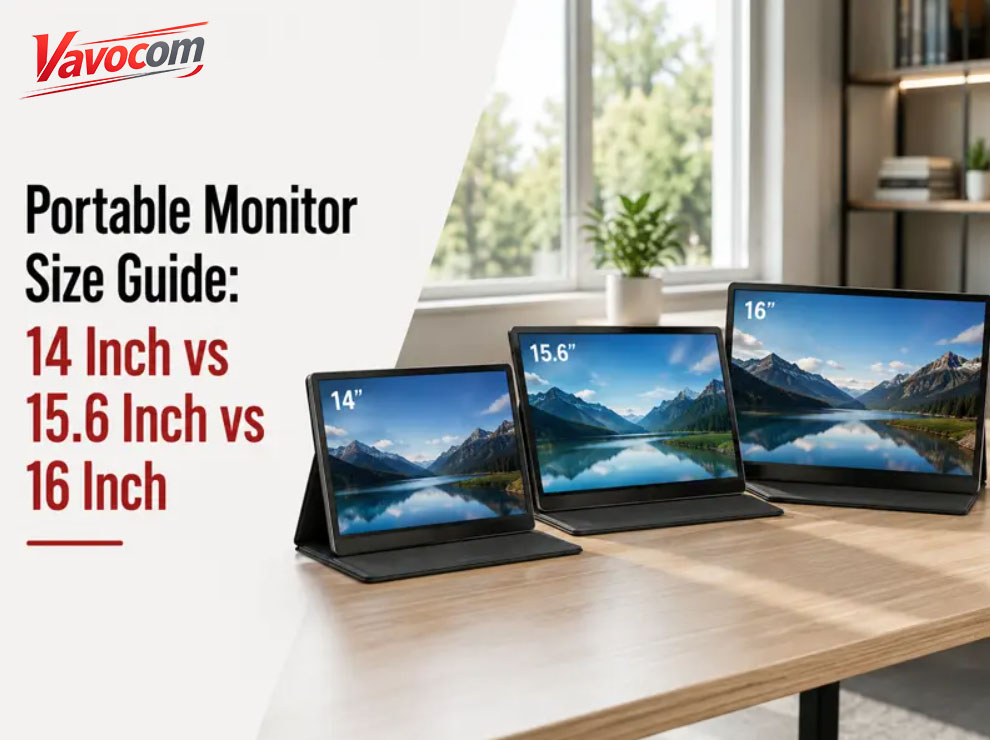
The best portable monitor size is not simply the largest screen you can carry. A 14 inch portable monitor is easier to pack and better for small desks. A 15.6 inch portable monitor is often the safest balance for laptop-style second-screen work. A 16 inch portable monitor gives more workspace, but it also needs more bag space, desk depth, stand stability, power planning, and connection support.Choosing between 14 inch, 15.6 inch, and 16 inch sounds like a small difference on paper. In daily use, that small difference changes where the monitor fits, how far away you can sit, how comfortable text looks, whether your bag closes easily, and how much space remains for a keyboard, mouse, notebook, charger, or coffee cup.That is why a portable monitor size guide should not only compare diagonal numbers. Screen size works together with resolution, weight, stand design, cable position, USB-C or HDMI connection, power source, touch support, and the way you use the second screen. A monitor that feels perfect on a home desk may feel too large on a hotel desk. Another screen that feels great for travel may feel cramped when a spreadsheet, browser, meeting app, and notes window all need attention.The Quick Answer: Which Portable Monitor Size Fits You?Choose a 14 inch portable monitor when portability matters more than workspace. This size suits travel desks, student bags, coffee shop tables, compact laptop setups, and quick second-screen tasks such as email, notes, chat, reading documents, or keeping a reference page open beside the main screen.For many laptop users, 15.6 inch is the most balanced portable monitor size. It feels close to a familiar laptop display, gives more room than 14 inch, and still fits many laptop bags without making the setup feel too large. Remote work, study, online meetings, business travel, and daily multitasking usually fit this size well.Pick 16 inch when workspace matters more than compactness. Spreadsheets, coding editors, dashboards, slide review, design files, document comparison, and longer desk sessions usually feel better with the extra screen area. The trade-off is simple: a larger screen asks more from your bag, desk, stand, cable, and power setup.No portable monitor size is automatically best. The better choice is the one that matches the place where the screen will sit most often. A larger screen can become annoying if your desk is shallow or your backpack is tight. A smaller screen can become more useful if it is light enough to carry every day and easy enough to set up without thinking.Start With the Setup, Not the Screen NumberPortable monitor size decisions often go wrong when people start with the number instead of the setup. A 16 inch screen looks more attractive because it promises more workspace. A 14 inch screen looks more practical because it is easier to carry. A 15.6 inch model seems like the middle answer. Those impressions are useful, but they are not enough.Picture the screen beside your actual device. A 14 inch portable monitor next to a 13 inch laptop can feel neat and balanced. The same screen beside a 16 inch laptop may feel small if both screens are used for serious multitasking. A 16 inch portable monitor beside a compact laptop may give excellent workspace, but it can also dominate a small desk and leave little room for a mouse.Desk depth changes the answer too. When the screen sits close to your eyes, a larger portable monitor can feel intense in a cramped setup. When the screen sits farther away, a smaller monitor may make text, menu labels, and spreadsheet cells harder to read. Viewing comfort depends on size, distance, character size, display scaling, and the type of work on the screen.Bag space adds another reality check. Some users can carry a 16 inch monitor without noticing the difference. Others find that the extra width, case thickness, stand cover, cable pouch, and charger make the setup less portable than expected. A portable monitor that stays at home because it is slightly too large is not solving the mobility problem.14 Inch Portable Monitor: Best for Travel and Small SetupsA 14 inch portable monitor is a mobility-first choice. It makes sense when the second screen needs to fit into a backpack, sit on a small desk, and disappear quickly when the work session ends. Students, travel workers, coffee shop users, and people who work from shared spaces often find this size easier to live with than larger options.This size works well for supporting tasks. Notes can sit on the second screen during a video call. A browser reference can stay open while a document is edited on the laptop. Chat, email, calendars, dashboards, reading material, and lightweight spreadsheets all fit the role of a compact side display. The monitor does not need to replace a desktop screen; it only needs to reduce window switching.Small desks are where 14 inch feels especially useful. A compact portable monitor can sit beside a laptop without pushing the keyboard, mouse, notebook, or charger into awkward positions. Cable management is also easier because the display takes less width and usually works better in tight corners or temporary setups.The limitation appears when the second screen becomes a main work surface. Large spreadsheets need more scrolling. Side-by-side documents can feel narrow. Coding panels, design previews, timelines, financial dashboards, and detailed review work may feel cramped after a while. A 14 inch portable monitor can handle these tasks occasionally, but it is not the most comfortable size for long sessions with several windows open.Travel-heavy users may still prefer 14 inch because the best portable monitor is often the one that actually leaves the bag. When a screen is light, compact, and easy to place anywhere, it gets used more often. For people who work from fixed desks most of the time, the smaller workspace may become a daily compromise.15.6 Inch Portable Monitor: The Most Balanced Choice for Many UsersA 15.6 inch portable monitor feels familiar because many laptop users already know this screen size. Beside a laptop, it usually looks natural and gives enough room for daily second-screen work without making the setup feel oversized. That familiarity is one reason 15.6 inch has become a common portable monitor size.Remote work is one of the strongest use cases. A meeting window can sit on the portable monitor while notes or a CRM page stays on the laptop. Students can keep lecture slides, research pages, or PDF notes on one screen while writing on the other. Office users can place email, chat, a dashboard, a browser tab, or a document preview on the second display and keep the main work area clean.Compared with 14 inch, the extra space reduces the feeling of being squeezed. Text can feel easier to read at normal laptop distance. Windows have more room before they become cramped. Spreadsheet columns, PDF pages, and browser layouts usually feel less tight, especially when the monitor is used for more than quick reference.Compared with 16 inch, the setup stays easier to carry. Many 15.6 inch portable monitors fit into laptop bags designed for common notebook sizes. They still need attention to weight, stand thickness, cables, and power, but they usually do not feel as demanding as larger models.Still, 15.6 inch is not a universal answer. Short travel tasks may not need that much screen. Heavy spreadsheets, coding layouts, creative review, and long dashboard sessions may still benefit from a larger display. Think of 15.6 inch as the practical center point: enough screen space for most users, without the setup demands of a larger portable monitor.16 Inch Portable Monitor: More Workspace, More Setup CareA 16 inch portable monitor is a workspace-first choice. The extra screen area becomes useful when the second display is not just holding a chat window or a reference page, but supporting real work for hours. Spreadsheets, coding editors, financial dashboards, design review, document comparison, presentation editing, and timeline-based apps all benefit from more room.Reading can also feel more comfortable on a larger portable monitor, especially when the screen sits farther away. A 16 inch display may allow larger windows, more visible columns, and fewer cramped interface panels. Some models combine the larger size with higher resolution or a taller aspect ratio, making the screen feel closer to a premium laptop display.The size increase brings physical trade-offs. A 16 inch monitor needs more room in the bag and more space on the desk. A narrow table can feel crowded once the laptop, monitor, keyboard, mouse, phone, charger, and cables are all in place. If the stand is weak, the larger panel may wobble more noticeably, especially when the angle is adjusted or the screen is used in portrait mode.Power and connection support deserve more attention with this size. Larger models are often paired with higher brightness, higher resolution, touch input, speakers, or higher refresh rates. Those features may require a stronger power source, a better USB-C cable, a reliable HDMI cable, or a source device that can support the intended display mode. The diagonal size does not create the issue by itself, but the full setup has to support the screen’s features.For users who mostly work at a desk, 16 inch can be worth the added setup care. For users who move between cafes, classrooms, airports, and hotel rooms every week, the larger size may feel like too much unless the bag and workspace already support it.14 vs 15.6 vs 16 Inch Portable Monitor ComparisonThis table is a practical starting point, not a fixed rule. The right portable monitor size also depends on resolution, weight, stand design, cable setup, power needs, and viewing distance.SizeBest ForMain AdvantageMain Trade-OffGood Fit When14 inchTravel, small desks, compact laptop setupsEasiest to carry and place anywhereLess room for multitaskingYou mainly need notes, chat, email, browser reference, or light second-screen support15.6 inchLaptop second screen, remote work, study, business travelBalanced screen space and portabilityNot as compact as 14 inch and not as spacious as 16 inchYou want a familiar laptop-sized second display for everyday tasks16 inchProductivity, coding, spreadsheets, dashboards, longer desk useMore workspace and better viewing comfortNeeds more bag space, desk space, stand stability, and setup careYou use the second screen for real work, not only quick referenceA simple way to decide is to start with your most common location. Travel bags, coffee shops, and small desks point toward 14 inch. Daily laptop work usually points toward 15.6 inch. Longer desk sessions with heavier multitasking point toward 16 inch.
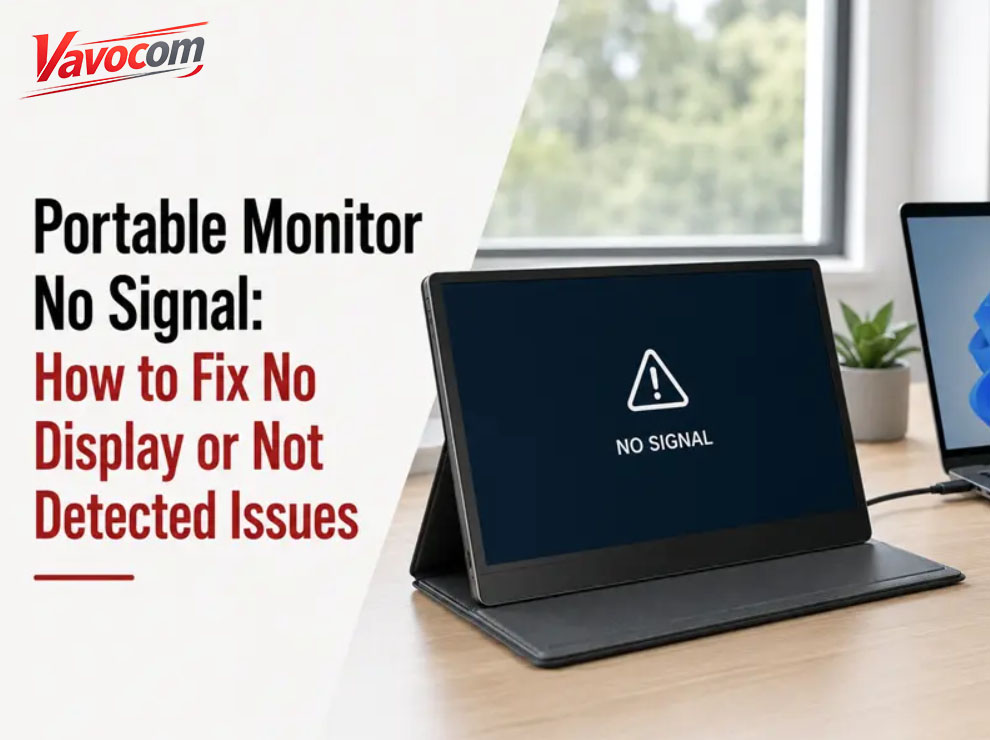
A portable monitor usually shows “No Signal” when it is powered on but not receiving a usable video signal. The screen is not always broken. More often, the problem comes from weak power, the wrong input source, a charge-only USB-C cable, a USB-C port without video output, an HDMI cable without separate monitor power, display settings, or a resolution and refresh rate the monitor cannot accept.The fastest troubleshooting path is simple: check power first, then input source, cable, port capability, display settings, resolution, adapters, and another device. That order helps you separate a portable monitor no signal issue from a portable monitor not detected issue or a real hardware fault.First, Know What “No Signal” Means“No Signal” usually means the portable monitor is awake but does not receive valid video from the connected laptop, desktop, mini PC, phone, tablet, or console. You may still see the logo, menu, power light, or a short message before the screen goes black.“No display” is broader. The screen may stay black because no video signal arrives, but low brightness, unstable power, the wrong input, or the wrong display mode can create the same result.“Not detected” points more toward the source device. Windows may not show a second display, macOS may not list the monitor, or a tablet may charge through USB-C without sending video. At that point, the cable, port, adapter, operating system, or video output support needs attention.These differences decide where to start. A monitor that shows its own menu probably has power. When the screen flashes a logo and shuts down, better power may be needed first. If the device never appears in system display settings, cable, port, driver, or adapter checks should come next.Check Power Before Replacing the CablePower problems create many portable monitor no display cases. When power is weak, the monitor may flash its logo, restart, flicker, show “No Signal,” or go black after a few seconds.With HDMI setups, video and power are usually separate. HDMI can send the image, but many portable monitors still need USB-C power, DC input, a power adapter, a power bank, or a charged internal battery. Even when a laptop sends a valid HDMI signal, the screen may still fail because the monitor is underpowered.USB-C one-cable setups can also run into power limits. Some laptops, phones, tablets, and handheld devices can send video but may not power every portable monitor reliably. Higher brightness, speakers, touch input, long cables, or low-quality cables can make the problem worse.Start with the most stable power source available. Use the monitor’s recommended adapter when possible, charge battery-powered models first, and avoid weak USB ports during testing. A built-in battery can reduce power issues, but it will not fix the wrong input, a charge-only cable, or a USB-C port without video output. This guide on a portable monitor with battery explains why power and video compatibility should still be checked separately.Select the Correct Input SourceWrong input selection is easy to miss. Many portable monitors support USB-C, HDMI, Mini HDMI, or more than one USB-C port. If the monitor waits on USB-C while the cable is connected through HDMI, it may show “No Signal” even though the cable is fine.Use the monitor’s menu button, wheel, or side control to choose the input that matches the cable. Select USB-C for a USB-C video connection. Choose HDMI or Mini HDMI when using an HDMI cable. After switching input, wait a few seconds before unplugging anything, because some portable monitors need time to detect the signal.Automatic input detection does not always behave the way users expect. Some displays remember the last input. Others stop scanning once they detect power. When USB-C power and HDMI video are connected at the same time, the screen may still listen to the wrong video channel until the input is changed manually.This step is quick, but it saves time. Many users replace cables or change computer settings while the monitor is simply waiting on the wrong port.USB-C No Signal: Check Video Output and Cable TypeUSB-C causes the most confusion because the connector shape does not reveal what the port supports. Some USB-C ports charge only. Other ports handle charging and data. Video output usually needs DisplayPort Alt Mode, Thunderbolt, or another supported video mode on the source device and connection path.A charge-only USB-C cable may turn on the portable monitor but still carry no image. For video, test with a full-featured USB-C cable that supports display output. The cable included with the monitor is usually the best first option, while random phone charging cables often fail this test.Device support matters just as much as the cable. Many laptops have more than one USB-C port, and not every port supports external display output. Some phones and tablets use USB-C only for charging and data. Older laptops, low-cost tablets, and budget phones are especially worth checking in the device manual or official specifications. DisplayPort explains that DisplayPort over USB-C depends on USB-C Alternate Mode support, so the whole connection path has to support video.During troubleshooting, remove extra variables. Connect the portable monitor directly to the source device with a confirmed video-capable USB-C cable. If direct connection works but the hub or dock fails, the issue is probably adapter bandwidth, dock power, firmware, or unsupported video routing rather than the monitor itself.HDMI No Display: Confirm Video, Power, and InputHDMI troubleshooting is usually easier than USB-C troubleshooting, but it still has three separate parts: video cable, monitor power, and input selection. Missing any one of them can produce a black screen or “No Signal.”Start with the physical connection. Mini HDMI plugs are small and can feel connected even when they are not fully seated. Loose adapters, thin cables, and bent connectors can also create intermittent display problems.Next, check power. HDMI usually sends video, not power. A portable monitor connected through HDMI may still need USB-C power, DC power, a power adapter, or a charged battery. Without that power path, the display may turn on briefly and then go black.Finally, confirm the source output. A laptop, mini PC, desktop, or console may not automatically send an image to the portable monitor. Display mode, console resolution, refresh rate, or input selection can all block the image. More HDMI-specific setup details are covered in this HDMI portable monitor guide.Portable Monitor Not Detected on WindowsOn Windows, a portable monitor may fail because of projection mode, Display settings, a driver issue, a weak connection, or unsupported USB-C video output. Start with the software checks before assuming the screen is faulty.Press Windows logo key + P and choose Duplicate, Extend, or Second screen only. When PC screen only is selected, Windows may not send an image to the portable monitor. After that, open Settings, go to System, choose Display, and use Detect under the multiple displays section. Microsoft’s external monitor troubleshooting guidance also points users toward connection checks, projection mode, detection, and display driver steps.Connection order can make a difference. Disconnect the monitor, restart the computer, power the monitor, and reconnect the cable. Try another USB-C or HDMI port if one is available. For HDMI setups, confirm separate monitor power before changing Windows settings again.Driver problems usually appear after system updates, dock changes, or adapter changes. Updating, reinstalling, or rolling back the graphics driver may help if the portable monitor worked before but suddenly stopped. Testing without a dock or hub is also useful because Windows may detect the dock while failing to see the monitor behind it.Cross-testing gives the clearest answer. Connect the same portable monitor to another computer, then connect the same computer to another external display. The result shows whether the problem follows the monitor, cable, port, adapter, or computer.Mac, iPad, or Tablet Not Showing the Portable MonitorMac, iPad, and tablet issues often come from device support, cable bandwidth, adapter limits, or display mode support. USB-C alone is not enough to guarantee external video output.For Mac users, the cable or adapter must support the display connection, resolution, and refresh rate. A dark screen, low resolution, or unstable image may come from an adapter that cannot handle the selected mode. Mac model limits can also affect how many external displays are supported, and Apple explains that external display behavior can depend on the Mac, cable, adapter, display, resolution, and refresh rate.USB-C iPads can connect to external displays, but higher-resolution output needs a high-bandwidth USB-C cable. A basic charging cable may not be enough for stable video. Some app behavior and display modes also depend on the iPad model and iPadOS support.Android phones and tablets vary even more. Some models support external display output; others do not. A phone may charge the monitor or show a USB notification while sending no video at all. Check the official specifications for terms such as DisplayPort Alt Mode, video output, desktop mode, or external display support.Lower the Resolution and Refresh RateA portable monitor may receive a signal but still go black, flicker, or show an unsupported signal message if the source sends a mode the screen cannot handle. This happens more often with high-refresh portable monitors, older laptops, low-cost HDMI adapters, USB-C hubs, consoles, and multi-monitor setups.Use 1920 × 1080 at 60Hz as a safe test mode when possible. Many portable monitors support this setting, and it reduces bandwidth pressure on the cable, adapter, and source device. If the screen works at 1080p 60Hz, raise the resolution or refresh rate step by step.High refresh rates need the full connection path to support the required bandwidth. A monitor may advertise 120Hz or 144Hz, but the source port, cable, adapter, and monitor input all need to support that mode. A weak hub or older HDMI adapter can limit output even when the computer itself supports higher settings.Refresh rate problems can look like cable failures. The display may flicker, reconnect repeatedly, or show no signal after the operating system loads. Dropping to a lower mode is often faster than replacing hardware first.Remove Hubs, Docks, and Adapters During TestingHubs, docks, and adapters can turn a simple display setup into a confusing one. A USB-C hub may support charging and data but not video. HDMI adapters may limit resolution or refresh rate. Docking stations may need external power, firmware updates, drivers, or specific display settings.Begin with the simplest direct connection. For USB-C, use one confirmed full-featured USB-C video cable. For HDMI, use one HDMI or Mini HDMI cable plus separate monitor power. Avoid chaining hubs, docks, extension cables, and adapters until the basic connection works.After direct connection succeeds, add the hub or dock back into the setup. If the screen stops working only after the adapter is added, the portable monitor is probably not the main problem. Adapter bandwidth, dock power, cable direction, firmware, or unsupported video conversion may be responsible.Travel desks and office docking setups often hide this issue because one small hub handles charging, USB accessories, Ethernet, and display output. Convenience is useful after everything works. During troubleshooting, a direct connection gives cleaner answers.Touch Works but the Screen Has No DisplayTouch portable monitors can be confusing because touch data and video signal are separate paths. A computer may recognize the touch device while the screen still shows no image. In that case, the USB data path may be working while the video path is not.HDMI setups make the difference easier to understand. HDMI normally carries the picture. Touch input usually needs a separate USB cable for data. When the image appears but touch does not work, the issue is likely touch data, driver support, or touch mapping rather than no signal.The reverse can also happen. When touch is detected but the screen has no display, focus on the video cable, input source, USB-C video support, HDMI connection, power, resolution, and refresh rate. Touch calibration can wait until the image appears.For a deeper explanation of the separate video, touch, and power paths, see this touch portable monitor compatibility guide.
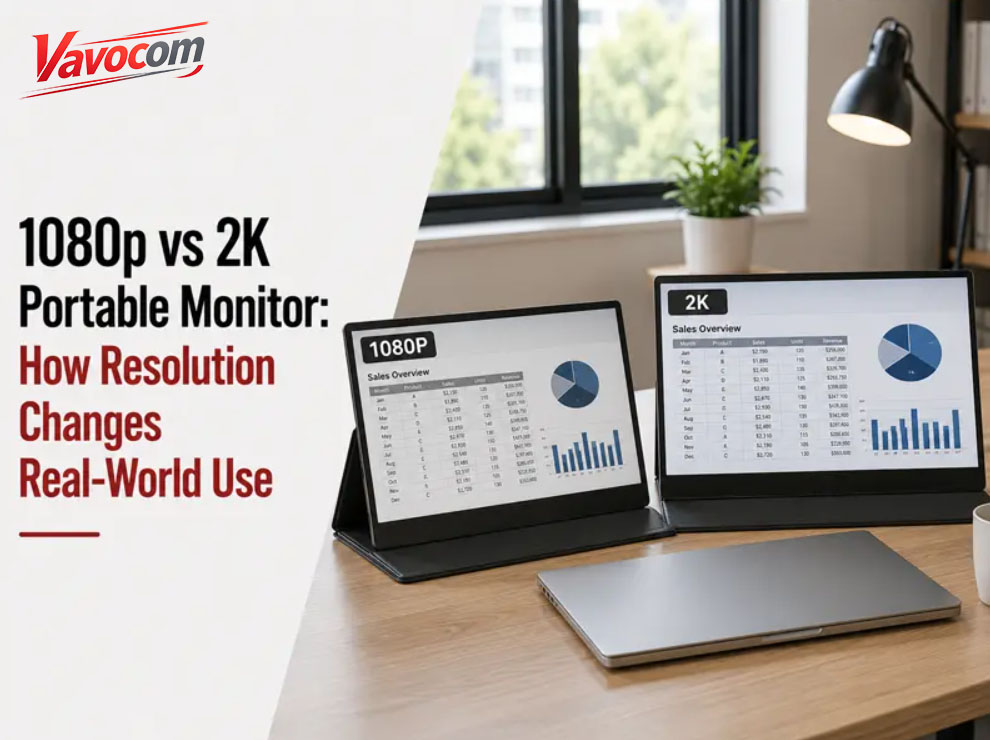
A 2560×1440 QHD portable monitor—often marketed as a “2K portable monitor”—can look noticeably sharper than a 1920×1080 model, but higher resolution does not automatically create a better working experience. On a 14- to 16-inch screen, Full HD already delivers relatively high pixel density. QHD adds finer text and more pixels for compact layouts, yet the real benefit depends on screen size, viewing distance, operating-system scaling, workload, refresh rate, and the video output capability of the connected device.The difference becomes clearer during real work than on a specification sheet. Put Outlook, a CRM page, an invoice PDF, and a spreadsheet across a laptop and portable second screen. QHD may make small text cleaner and allow tighter layouts, but increasing Windows scaling to keep everything comfortable can give back part of the extra workspace. Resolution matters, but it works together with the rest of the setup.What Does “2K” Mean on a Portable Monitor?The term “2K” is used loosely in the monitor market, which is why two product listings can appear to describe the same resolution while using different labels.In formal digital cinema terminology, DCI 2K refers to 2048×1080. Computer monitor specifications usually describe 2560×1440 as QHD, WQHD, or 1440p instead. Consumer listings nevertheless often call 2560×1440 a “2K” resolution, especially when distinguishing it from 1080p and 4K displays.Reference: Digital Cinema Initiatives specifications and Intel display bandwidth documentation.That difference in naming matters more than it first appears. Someone comparing portable monitors may see “2K,” “1440p,” “QHD,” and “WQHD” across different listings and assume they describe four different classes of display. In many monitor contexts, the last three refer to 2560×1440, while “2K” is being used as a less precise marketing label.For that reason, this guide uses 2K portable monitor where it matches common search and product language, but technical comparisons use the actual resolution: 1920×1080 versus 2560×1440.The practical lesson is simple: read the pixel dimensions before judging the label. The resolution number is more useful than the marketing name.How Much Sharper Is 2K Than 1080p on a Portable Screen?Pixel count is the easiest place to start. A 1920×1080 display contains about 2.07 million pixels, while 2560×1440 contains about 3.69 million. That gives QHD roughly 78% more pixels.Those extra pixels do not simply sit unused. On the same physical screen size, they increase pixel density, allowing text edges, icons, interface lines, charts, and image details to render more finely.Portable monitors make that effect particularly interesting because their screens are relatively small. A 15.6-inch Full HD display already has much denser pixels than many larger desktop monitors, so 1080p does not automatically look coarse. Moving to QHD raises the density further, but whether the difference feels useful depends on how close the screen sits and how small the user is comfortable making the interface.The figures below are a practical starting point rather than a fixed answer. Viewing distance, eyesight, application design, and operating-system scaling all affect how sharp or spacious the display actually feels.Screen Size1920×10802560×1440Practical Effect14 inch~157 PPI~210 PPIQHD is extremely dense; scaling often becomes important15.6 inch~141 PPI~188 PPIFine text and compact UI can look noticeably cleaner16 inch~138 PPI~184 PPIQHD adds detail without increasing physical screen sizeA 15.6-inch 1080p portable monitor at roughly 141 PPI is already suitable for normal office viewing distances. Email, invoices, browser pages, spreadsheets, presentations, and document windows can look clear without requiring a higher resolution.QHD becomes more noticeable when the screen sits close to the user or regularly displays small fonts and dense interface elements. A developer looking at code, a finance user working with narrow spreadsheet columns, or someone reading detailed technical PDFs may see more benefit than a traveler who mainly keeps email or a presentation on the second screen.Higher pixel density creates the potential for better sharpness and denser layouts. It does not determine how much workspace the user will actually keep.Why Higher Resolution Does Not Always Mean More WorkspaceA common expectation is that 2560×1440 will simply show much more content than 1920×1080. Mathematically, there are more pixels available. In practice, the operating system decides how those pixels are used through display scaling.Consider a 15.6-inch QHD portable monitor connected to a Windows laptop. At 100% scaling, a spreadsheet may show more columns, a browser can fit more information, and side panels take up less physical space. The layout looks impressively dense until small menus and text become uncomfortable to read for several hours.Raising scaling to 125% or 150% solves the readability problem by enlarging interface elements. Fonts become easier to read, buttons regain comfortable dimensions, and the screen still benefits from higher pixel density. At the same time, part of the extra working area disappears because each interface element now occupies more of the available pixels.Microsoft’s High-DPI documentation explains that higher resolution or smaller display size increases pixel density, while scaling changes the effective size of interface elements so they remain readable. Microsoft High-DPI guidance provides additional technical background.This is why screenshots comparing 1080p and QHD can be misleading. Two users running the same 15.6-inch QHD screen at different scaling settings may experience very different amounts of usable workspace.Higher resolution gives the operating system more pixels, but scaling determines how much of that resolution becomes usable workspace.The trade-off is not necessarily negative. A user may deliberately choose QHD at higher scaling because sharper text matters more than fitting additional windows on screen. Another user may keep scaling lower to gain more visible spreadsheet rows or editor space.Choosing a portable monitor resolution therefore involves two separate questions: how sharp do you want the screen to look, and how small are you comfortable making the interface?
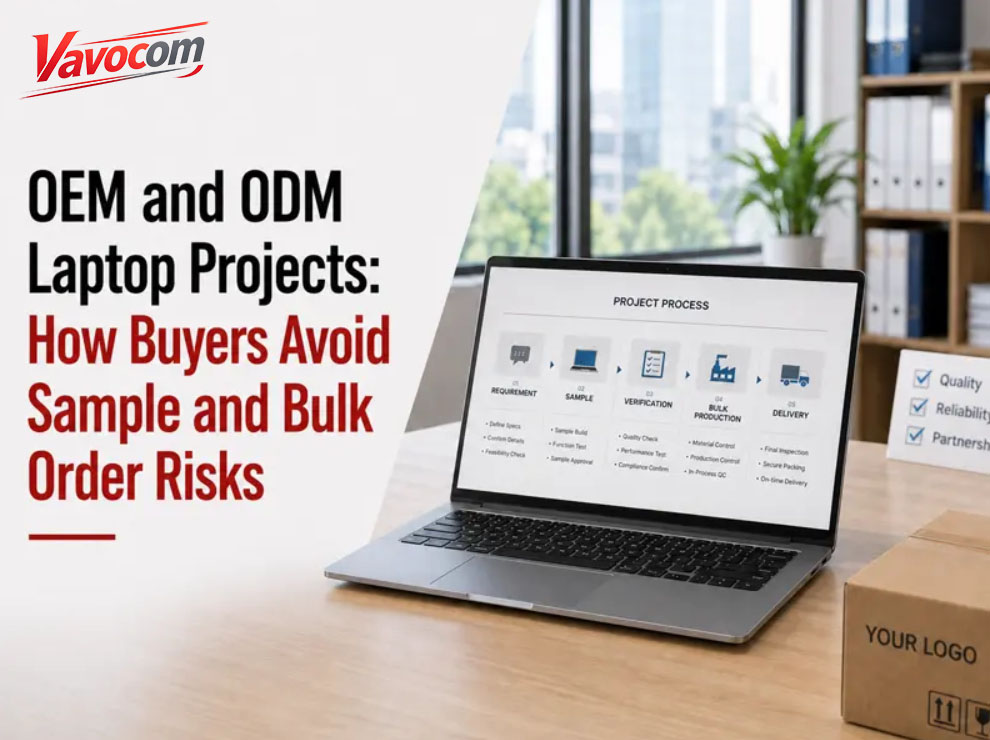
An OEM laptop or ODM laptop project should not move to bulk production just because one sample works well on a meeting room desk. The safer question is whether the supplier Excel quote, sample unit, invoice description, certification files, BIOS setup, OS image, packaging artwork, shipping labels, inspection standard, and warranty terms all describe the same product. Many disputes begin after “sample approved,” when buyers discover that the bulk order standard was never clearly locked.For B2B buyers, the goal is not only to buy a customized laptop. The goal is to approve a production standard that can survive factory assembly, market compliance review, channel delivery, user deployment, and after-sales support. CPU, RAM, SSD, logo, and color box design matter, but they are only part of the project. The details that usually create cost later are harder to see at the RFQ stage: panel substitution, battery documents, keyboard language, driver image, carton strength, spare parts, and RMA responsibility.OEM Laptop vs ODM Laptop: The Name Matters Less Than the Project ControlBuyers often search for OEM laptop, ODM laptop, custom laptop, or OEM notebook computer when they are really asking a more practical question: how much can this laptop project be changed, and which details will remain stable after sample approval?An ODM laptop project usually starts from an existing supplier platform. That route can work well when distributors, resellers, education buyers, or private label brands need a faster launch with controlled customization. The buyer may adjust branding, memory, storage, keyboard layout, packaging, and software setup within the limits of the selected platform.An OEM laptop project may involve more buyer-defined requirements, but OEM does not mean unlimited redesign. Chassis tooling, motherboard layout, port position, thermal structure, battery placement, wireless module, and certification scope may limit what can be changed without a new development cycle. A buyer who ignores those limits may approve a quote that looks attractive but later faces tooling cost, longer lead time, or a configuration that cannot be repeated consistently.The practical discussion should start with three questions: which details are flexible, which details are fixed by the platform, and which details must be locked before bulk production? Buyers who answer these early reduce the risk of sample difference, lead time change, and unclear warranty cost later.For buyers still defining the model direction, GreatAsia’s laptop computers category and custom laptop project guide provide useful context for platform-based OEM/ODM planning.Why Similar OEM ODM Laptop Quotes Can Have Very Different PricesA supplier quote may show the same screen size, processor family, RAM, and SSD as another quote, yet the real product cost can be very different. The gap may come from the display panel grade, motherboard platform, Wi-Fi module, battery cell choice, adapter, keyboard printing method, warranty term, packaging strength, certification files, or system image preparation.Low price is not automatically a warning sign. The real risk appears when the quote does not explain its scope. One buyer may expect a retail-ready private label laptop with branded packaging, barcode labels, localized keyboard, Windows setup, and channel cartons. The supplier may have quoted a basic factory configuration with neutral packaging and limited documentation. That mismatch often becomes visible only when artwork, labels, certification files, shipping cartons, or after-sales terms are added later.This table is a practical starting point, not a fixed answer. Available options depend on the selected laptop platform and should be confirmed before sample approval or bulk order.RFQ DetailWhy It Changes the Real CostWhat Buyers Need to LockDisplay panelSame size may use different brightness, color quality, viewing angle, refresh rate, or supplier grade.Panel type, resolution, brightness, touch option, and supply stability.Mainboard platformBoard choice affects ports, BIOS, drivers, thermal behavior, and future supply.CPU generation, board version, port layout, BIOS version, and lifecycle.Memory and SSDCapacity alone does not show brand, grade, performance, or substitution risk.RAM type, SSD interface, approved brands or grades, and replacement rules.BatteryCapacity and cell choice affect runtime, weight, shipping documents, and cost.Battery capacity, watt-hour rating, UN38.3 document, and shipment method.KeyboardLanguage layout, backlight, and printing method can affect MOQ and lead time.Layout, font, printing method, backlight option, and spare keyboard plan.OS imageA basic installation is not the same as project deployment readiness.OS version, drivers, activation method, BIOS settings, and recovery plan.PackagingChannel packaging requires more than a neutral factory carton.Color box, carton strength, barcode, serial label, manual, and pallet plan.CertificationA certificate may not cover every configuration, adapter, wireless module, or market.CE/FCC/safety scope, adapter model, wireless module, and product label.A buyer comparing laptop wholesale pricing should read each quotation as a project scope document, not only as a unit price. When buyers compare laptop suppliers, a missing line in the RFQ can become a price increase, inspection failure, customs delay, reseller complaint, or warranty dispute after the order has already moved forward.Sample Approval Should Lock the Product, Not Just the LookSample approval is often treated too casually. The laptop turns on, the logo is in the right place, the keyboard works, Wi-Fi connects, and the buyer confirms the sample by email. That may be enough for a quick demonstration, but it is not enough for an OEM ODM laptop project.A strong sample approval record should describe the unit that bulk production must follow. The buyer and supplier need to lock the CPU platform, RAM, SSD, display panel, battery, adapter, keyboard layout, Wi-Fi/Bluetooth module, camera, microphone, ports, BIOS settings, OS image, driver version, logo position, packaging artwork, barcode, serial number label, manual, warranty card, accessories, and carton standard.Production problems usually begin with details that looked too small to record. A changed Wi-Fi module may create driver complaints. A different display panel may reduce brightness or viewing angle. A substituted SSD may behave differently during large file transfer or system recovery. A modified adapter may require a new label or document review. Packaging that protected one air-shipped sample may fail during pallet delivery or courier sorting.Photos are useful, but photos alone do not lock a laptop project. Buyers need an agreed configuration sheet, BOM reference, packaging file, label file, accessory list, certification document list, and inspection standard. Once those documents match the approved sample, the factory, buyer, inspection team, and after-sales team can work from the same reference.Without this lock, the buyer may technically receive “the same laptop” while still facing small changes that create higher return rates, support complaints, or difficult RMA discussions.BIOS, OS Image, and Drivers Can Decide Deployment SuccessIn education, enterprise, government, and reseller projects, deployment problems often appear after the hardware looks acceptable. The CPU, RAM, and SSD may meet the quotation, but the project still becomes slow because BIOS settings, TPM status, Secure Boot, driver package, OS version, recovery image, activation method, or MDM process was not discussed before sample approval.Microsoft’s Windows 11 system requirements include memory, storage, UEFI Secure Boot capability, and TPM-related requirements. Microsoft also separates minimum requirements from additional feature or application needs, which matters for buyers planning real classroom or office workloads. Minimum requirements are not the same as a comfortable long-term setup.A school buyer may need hundreds of laptops to boot into a consistent image before classroom handover. An enterprise project may involve Microsoft Intune or Windows Autopilot preparation. Microsoft’s Windows Autopilot device guidance refers to OEM or partner processes such as uploading hardware hashes before shipment, so device identity and registration responsibility should be clarified before bulk delivery.The project conversation should answer practical questions before production starts. Who prepares the OS image? Which drivers are included? Will the same BIOS version be used in bulk production? Are TPM and Secure Boot configured according to the buyer’s IT policy? How will recovery work if end users reset the device? Who handles deployment-related tickets after delivery?For many office, education, and reseller projects, 16GB RAM and a 512GB SSD can be a safer long-term starting point when multitasking, browser-based learning platforms, Microsoft Office, video calls, and management tools are expected. That is not a universal requirement. Workload, target price, selected platform, and project lifecycle should decide the final configuration.

ROOM 701 UNIT 108 7/F TOWER BNEW MANDARIN PLAZA 14 SCIENCEMUSEUM ROAD TSIM SHA TSUI KL



 IPv6 network supported